
Still have a question? Ask us.
Starting at the right moment, and keeping the game smooth.
Ideally every game would be recorded at 60 fps at its maximum resolution. That's possible for some games, but depending on your Mac's capabilities it may not be for others.
Use "Record Fullscreen After…" in Screenflick, and choose "Screen Resolution Changes", so the recording starts after the game changes the resolution. Keep reading.
Record at the lowest resolution, frame rate, and quality you can accept, and turn V-Sync on in the game. Keep reading.
Start the recording before launching the game, and trim the recording before exporting. Keep reading.
Some fullscreen games change the screen resolution when they start. If the recording started before the game launched, that can cause the recording to stop. To handle it, use the Record Fullscreen After… feature and choose to start when the screen resolution changes.

To get the best recording performance, record at the lowest acceptable resolution, frame rate and quality.
If the recording is destined for somewhere like YouTube, where the maximum resolution is 1080p for the vast majority of viewers, you can tell Screenflick to limit the recorded video to 1080p while you still play the game fullscreen at a larger resolution. On a 27" 5K Retina iMac the screen is 5120x2880 pixels, which is huge. Using the Scale option in Screenflick to limit the capture to 1080p reduces the work Screenflick does by about 7x, which vastly improves recording performance.
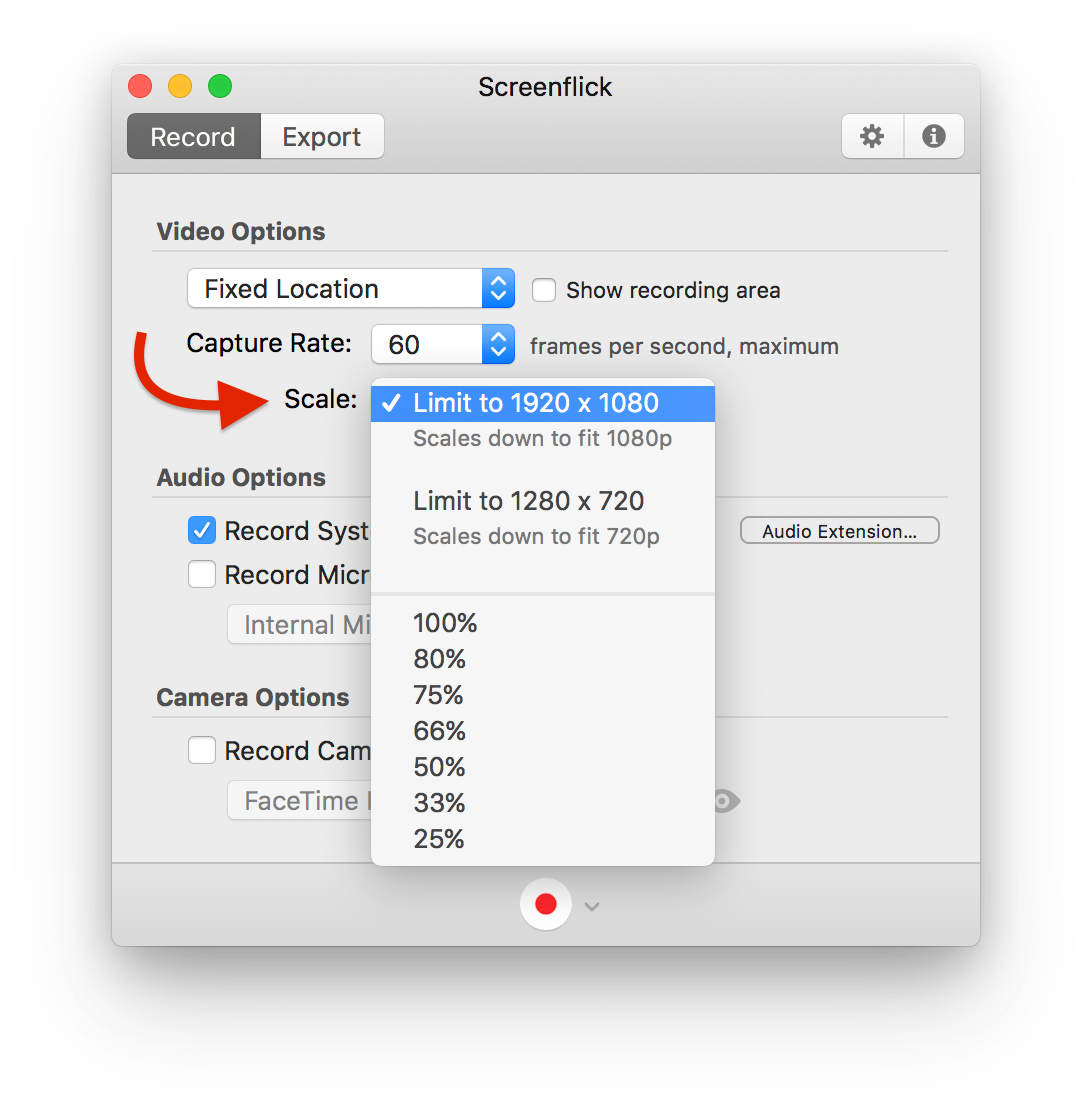
If the game runs worse while recording, lowering the frame rate from 60 fps to 30 fps makes a big difference.
In the Advanced tab of Screenflick's preferences, lower the quality slider a bit to reduce how much CPU power is needed. The lowest setting uses quite a bit less CPU than the highest at the expense of some quality, which may not matter in your case.
Make sure the game has V-Sync turned on. With V-Sync off, the game's frame rate can go above the maximum of the display and the chosen recording frame rate, which takes CPU and GPU power away from Screenflick. It can also cause hiccups in frame rendering and capture timing, which show up as stuttering. V-Sync reduces the chance of that.
Reducing the quality of the game's own rendering can also improve recording performance. The game and Screenflick share all of your Mac's resources, so a few compromises may be needed to keep both running smoothly.
Most games behave well. If a game's audio wasn't recorded, you may need to change your setup slightly, such as starting the recording before launching the game and trimming the recording before exporting. See Troubleshooting System Audio.

