Still have a question? Ask us.
Recording your Zoom video and audio calls on your Mac.
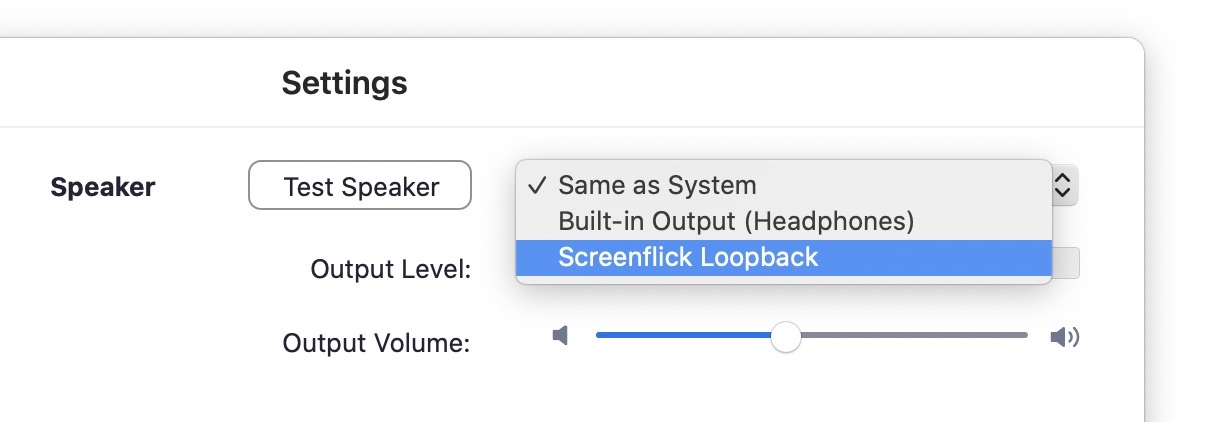
By default, Zoom's audio is recorded by Screenflick. If you've changed Zoom's audio output device (for example, to your headphones), change that setting again.
Set the "Speaker" setting in Zoom's audio preferences to "Same as System" or "Screenflick Loopback", turn on "Record System Audio" in Screenflick, and start recording. Keep reading.
You won't hear Zoom until you start a recording in Screenflick. Then you'll hear everything normally. Keep reading.
There is no step three.

Zoom. In Zoom → Preferences → Audio, prefer "Same as System" for the Speaker setting. If you do that, you can always hear and record Zoom without trouble.
An alternative is to select "Screenflick Loopback" directly instead of Same as System. After changing this setting, you won't hear any audio from Zoom until you start a recording in Screenflick. Then you'll hear everything normally.
Most people find that "Same as System" works properly and needs no settings changes when recording. Choosing Screenflick Loopback is the sure way to know it will be recorded.