
Still have a question? Ask us.
Both sides of a call, using Skype's own audio settings.
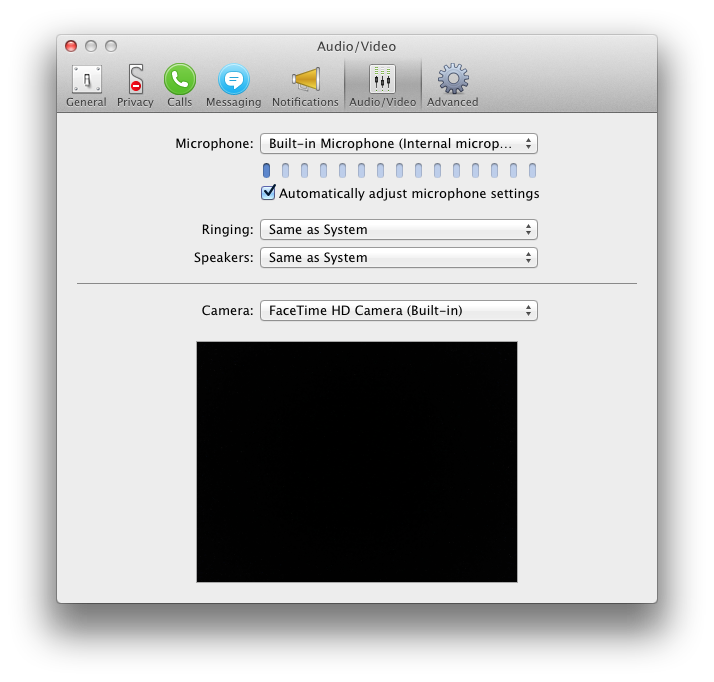
In recent versions of Skype (at least Skype 6.12 and newer), recording calls is easy. If you're using an older version of Skype that doesn't have the "Same as System" option, choose "Screenflick Loopback" instead wherever these steps say "Same as System".
In Skype's audio settings, set "Speakers" (and "Ringing" if you want the sound effects too) to "Same as System". In Screenflick, choose your microphone and turn on "Record System Audio". Keep reading.
Choose your headphones as the system's audio output device in System Preferences. Keep reading.
Microphone is what Skype hears you with, Ringing is where the call sound effects play, and Speakers is where the other person's voice plays. Keep reading.

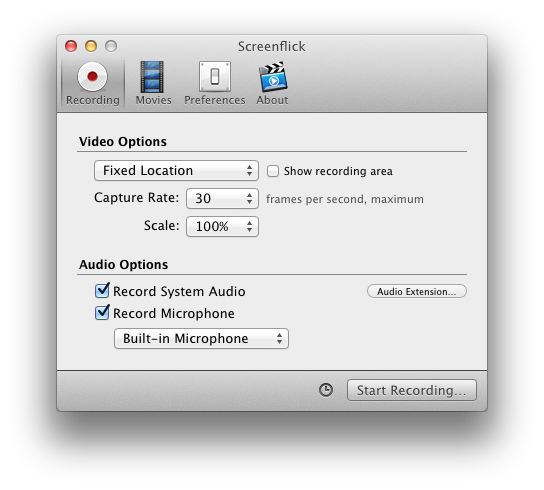
Recording the microphone captures you speaking, and recording system audio captures the other end of the call.
Skype has separate settings for each of these:
| Setting | What it does |
|---|---|
| Microphone | The device Skype listens to you with. It does not use the default input device chosen in System Preferences. |
| Ringing | Where Skype plays the ring tone and other sound effects when a call is being made and when it ends. |
| Speakers | Where audio from the person you're talking to is played. |
Because the sound effects and the conversation can go to two different devices, you can choose whether to record the effects. To record both, set Ringing and Speakers to "Same as System". If you don't want the effects recorded, set Ringing to your speakers or headphones directly instead. That bypasses Screenflick's recording, while your voice and the other person's voice are still recorded.

