
Still have a question? Ask us.
Choosing export settings that give the quality and file size you want.
The size of an exported movie depends entirely on the video compression settings you choose for the export. Screenflick assumes you know a little about them, because there are a lot of choices and trade-offs for different uses, and no single setting is right for everything.
For a one-size-fits-most guideline: use the QuickTime exporter, choose H.264 video compression and 96 kbps AAC for audio, and use the Quality slider to decide the movie's quality and therefore its size.
The file size depends on the compression settings you choose when exporting. A smaller resolution, a lower frame rate, and a lower quality all make a smaller movie. Keep reading.
Use the QuickTime exporter with H.264 video, 96 kbps AAC audio, and the "Quality" slider to choose the quality and size. Keep reading.
The preview in Screenflick is a rough preview. Export the movie and watch it in QuickTime Player to see how smooth it really is. Keep reading.
Several things determine the size of an exported movie:
You have complete control over the resolution and frame rate of an export. The smaller the resolution and the lower the frame rate, the smaller the movie. You also control the video quality, discussed below. What you don't control is the content of the movie, meaning how much of each frame changes from the previous one, which has the biggest effect on its inherent size. The way to influence that is the video quality setting.
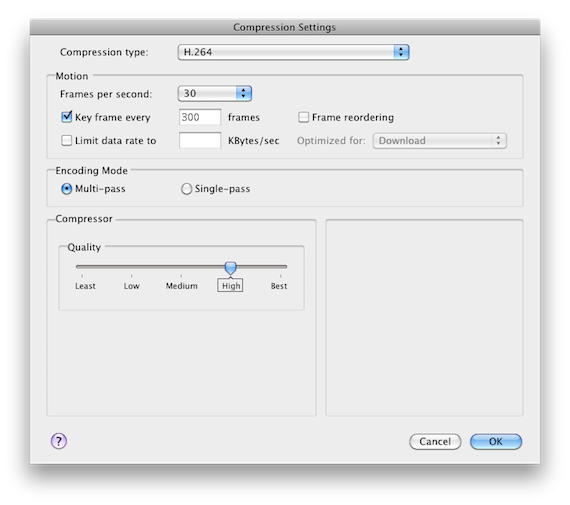
Generally, use the H.264 video encoder. It's the main video encoding scheme used across the Mac platform and most of the web.
The Key frame rate can have a big impact on file size. It says how often the movie includes a complete video frame rather than only the changes since the previous one, and fewer complete frames means a smaller file. Generally, one key frame every 10 seconds or longer is fine.
The other important setting is either the Quality slider, or, if you're targeting a specific file size, the Limit data rate to field, which limits the video's data rate in KBytes/sec.
If you want the movie to be 100 MB, that's 100 × 1024 = 102,400 KB. If the movie is 10 minutes long, that's 600 seconds, so set the limit to 102,400 / 600 = 170 KBytes/sec.
A fairly standard rate is 1.5 megabits per second, which is 1.5 × 1024 / 8 = 384 KBytes/sec. This is what Apple tends to choose for "Save for Web" movies in iMovie and QuickTime Player.
Playing with the slider usually works fine. If you want to be more precise, learn and experiment with the data rate limit.
Understanding these options lets you fine-tune the quality and file size of exported movies.
For some movie formats you can choose how video is compressed. With QuickTime mov files there are many choices, such as Animation, H.264 and MPEG-4. Most are "lossy", meaning they reduce quality to make the file smaller, but some retain quality much better while still shrinking the file dramatically. Unless you know you need something else, use H.264 for everything.
Just as when you choose the frame rate to record at, you can choose the frame rate to export at. 30 is typical for movies. Lower numbers reduce the file size, but the movie looks less smooth.
Video compression works not only by compressing the image of each frame, but also across frames. If part of two frames is exactly or nearly the same, the movie stores only the pieces of the second frame that change, to be drawn on top of the previous frame. To show the second frame, the player draws the first and then the second on top of it.
Key frames are frames that are always complete. More key frames tend to make a bigger file, but can reduce visual problems during playback, and make scanning through the movie faster, because fewer earlier frames have to be drawn to show the current one.
A key frame every 10 seconds or so is fine. If your export frame rate is 30, that's a key frame every 300 frames.
To set the quality, video compressors usually let you either pick a relative quality on a sliding scale from poor to maximum, or choose the amount of data to use for each frame on average.
With the Quality slider, the file ends up as large as it needs to be to keep the quality you chose. With a data rate limit, the quality is adjusted as needed to keep a consistent data rate.
For example, a ten-minute movie at 128 KB per second is roughly 75 MB. If you want a maximum of 40 MB, the data rate is (40 × 1024) / (10 × 60) = 68 KB/sec.
Choices such as download or streaming. Unless you're going to use real streaming video, choose Download.
In single-pass compression, the compressor starts at the beginning of the movie and compresses each frame in order. With Multipass on, it scans the movie first, perhaps several times, to learn about it, which lets it make better choices when compressing. That takes longer but produces smaller files.
Audio compression has as many options as video, but audio data is so much smaller than video that even full CD quality audio doesn't change the file size significantly. You can generally stick to AAC compressed stereo audio at 128 kbps and 44.1 kHz. For smaller files, 96 kbps stereo, or even mono, usually works very well.
The movie preview in Screenflick's export view is a rough preview, and can play back at a lower frame rate than the actual recording. To see the true speed and smoothness of the recording, export it and watch it in QuickTime Player.

