
Still have a question? Ask us.
Why some video can't be recorded, and what you can try.
DVDs, movies in the TV app, and streaming video such as Netflix and Hulu in Safari often can't be recorded. This is because of DRM protection built into macOS and controlled by Apple, which prevents you from recording it. You'll have the same issue with any screen recording software, because this is something Apple does. (It's not a limitation of Screenflick.) There are some work arounds however.
Safari protects that video with DRM built into macOS, so it can't be recorded. Another browser may work. Keep reading.
A black video area in a web browser usually comes from hardware acceleration, and a checkerboard on a DVD comes from Apple's DVD Player. Both have a fix. Browsers or DVDs.
Play it in VLC instead of Apple's DVD Player, and record that. Keep reading.
Safari implements DRM to protect the video it plays from being recorded, so things like Netflix, Amazon, Hulu, etc can't be recorded in it.
Google Chrome doesn't use Apple's DRM, so you may be able to play the video in Chrome and record it. If the video area is black in the recording, it's because Chrome is drawing the video with your Mac's graphics hardware in a way that can't be captured. Turn off hardware acceleration in Chrome and try again:
Turning it off can make video in Chrome use more of your Mac's power, so turn it back on when you're done recording.
If you see a checkerboard pattern in your recording of a DVD, it's because the DVD is DRM-protected to prevent copying its content. When a DRM-protected movie is being played in the Apple DVD Player application, macOS overlays a checkerboard pattern to enforce the content protection. (The same thing occurs when taking screenshots.)

Unfortunately, this DRM enforcement does sometimes interfere with legitimate fair uses. Luckily, this can be worked around by using a DVD player other than the one supplied by Apple, such as the application "VLC" from videolan.org.
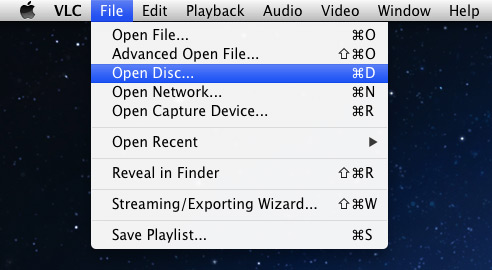
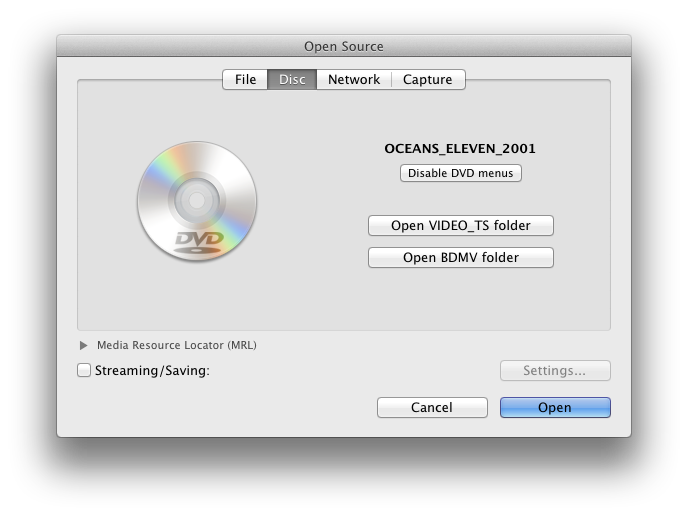
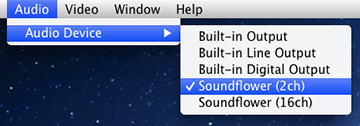
On macOS 13 and later, that's all you need to do for the audio. On macOS 12 and earlier, or if you use Screenflick Loopback, select "Audio Device → Screenflick Loopback" from VLC's Audio menu once the DVD window has opened, before you start recording.
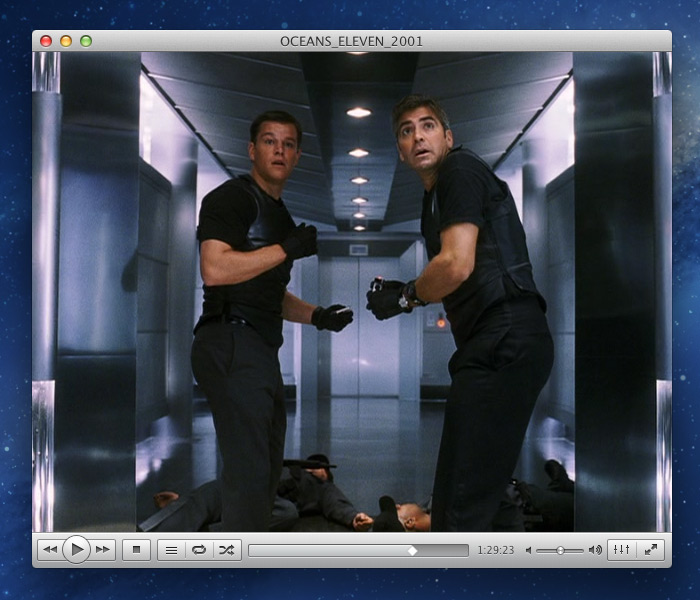
The VLC player UI is not as nice as Apple's for playing DVDs, but it'll do.

