Still have a question? Ask us.
Need to quickly jump to a specific table or database? Use View —> Go To… to open the Go To window, where you can just type a few characters to narrow down to the item you want to jump to.

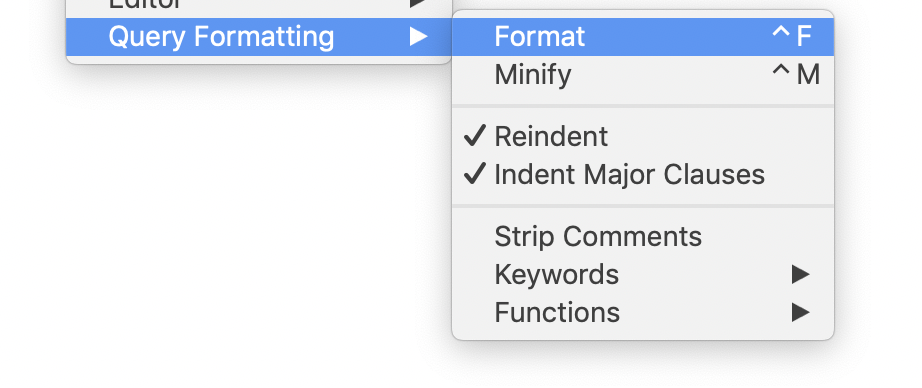
Right-click in the query text in the Query view to format the selected query. Querious can re-indent the queries, change keyword and function case, or even minify the SQL to make it as compact as possible.
When importing or exporting from CSV, you'll need to choose which columns to import/export. In Querious, this is done really quickly by simply dragging and dropping the columns.
Cmd-Ahold Shift and click on another to select a range.
If you want to duplicate a row in the Table Content view, you can either right-click on the row and select "Duplicate", or you can hold Option and click the + button at the bottom of the window.
In the Table Content view, select any number of rows, right-click on a column value in one of those rows, and select "Set Value for 'Field Name' in rows…" to be set all of the selected rows to have a new value for that column. You'll then specify the value in a new window.

Working in just one schema? Double-click it in the sidebar (or use the focus field) to hide everything else. Filtering and Go To then only look inside that schema, so there's less to scroll and less to type. Focus is per tab, so one tab can stay on a reporting schema while another shows the whole server.
On a server with lots of schemas, set Database / Schema in the connection settings and choose Exclusive. Querious never even reads the others, which makes everything faster.

Make overdue, failed, or suspicious rows jump out. Right-click a table, choose Show View Options…, and add Conditional Highlightings. Each rule is a column, an operator, and a value, and can color the whole row, its text, or just the matching field. Rules are saved per table with the connection.

A plain SELECT from one table that includes its primary key gives you editable results. Change values right in the result grid and Querious writes the UPDATE for you, with no trip to the Table Content view. The indicator in the bottom bar shows whether a result is editable.

Right-click one or more objects in the sidebar and choose Add to Favorites. A marker makes the handful of tables you open constantly stand out from the hundreds you don't. Favorites are saved with the connection.

In the Go To window, type part of a name, then press Tab on a result to see its subviews: Columns, Indexes, Info, and more. Jump straight to a table's indexes without touching the mouse. Type schema.table to restrict results to one schema, and press Escape to back out.

Double-clicking a field edits it in place, or in a separate window for long values like JSON or text. Hold Option while double-clicking to do the opposite. Option-click on a field also opens it in a separate editor window.
Querious tabs are as capable as separate windows. Drag a tab along the tab bar to reorder it, drag it onto another window's tab bar to move it there, or drag it out of the window to tear it off into its own window. Handy for putting two tables side by side.
Click Customize… in any export panel to build a filename template from tokens such as [#nickname#]-[#database#]-[#table#]-[#yyyy-mm-dd#]. You get Production-sakila-film-2026-09-11.sql every time, so a folder of backups always says where each file came from.
Use File —> Run SQL Script… for dumps and migrations. It streams the file instead of loading it into an editor, runs as a background task so you can keep working, and asks whether to stop or continue if a statement fails.
Press Command-Shift-F to jump to the search area. Right-click any column header or value and choose Add “column” to Search… to start a condition from it. Right-click the search background and choose Copy SELECT Statement to get the equivalent SQL, ready to paste into a query.
Comment or uncomment lines with Command-/, and change indentation with Command-[ and Command-]. Press Control-F to format the query, or Control-M to minify it. Control-Up and Control-Down hop the cursor between statements.
Control-N opens a new query editor, Command-Shift-, and Command-Shift-. step to the previous and next editor, and Control-W closes the one you're in. Keep a scratch editor for experiments, one for the report you're building, and one for cleanup, and never reach for the mouse.
Tables with dozens of columns are tiresome to scroll across. Press Control-J, type part of a column name, and Querious scrolls straight to it.
Press Command-Shift-T to open a new tab already connected to the same server. There's no connection window to click through, and it's ideal for one tab on your query and another on the table you're checking. Add Option to get a new connected window instead.
Turn on the Relationships panel in the sidebar to see rows in related tables for whatever row you've selected, and jump there in a click. With Include Ancestors on, you can answer questions like “what else has this customer done?” without writing a join.
Choose File —> Open… on any CSV or tab-separated file for a spreadsheet-style editor. Sort, search, find duplicate or unique values, reorder columns, split one column into several or join several into one, and save in a different format, all before the data ever touches a database.
Double-click a saved query in the sidebar to copy its SQL into a new query editor, so you can tweak it without changing the saved version. You can also drag a saved query into any other app to drop in its SQL as text.

